
Getting the YouTube Thumbnail Size right is one of the simplest yet most overlooked steps in growing a channel. A thumbnail is often the very first thing a potential viewer notices, long before they read your title or watch a single second of your video, and if the dimensions are wrong it can appear blurry, cropped or unprofessional across different devices. In this complete guide, you will learn the exact pixel dimensions YouTube recommends, how thumbnail sizing compares across other platforms, and practical tips that help creators of every experience level design thumbnails that genuinely earn clicks in 2026.

What size is a YouTube thumbnail?
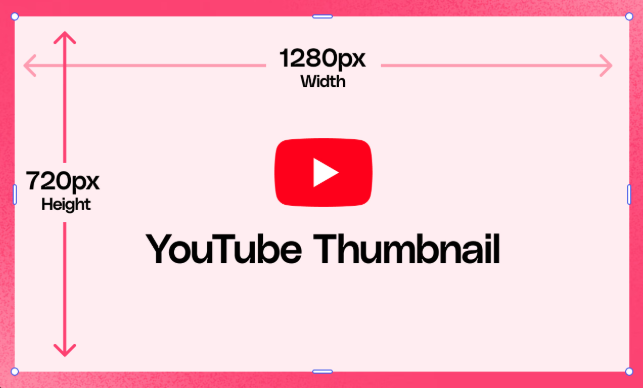
The official YouTube Thumbnail Size is 1280 by 720 pixels, using a widescreen 16:9 aspect ratio. This matches the shape of the YouTube video player itself, which is why 16:9 remains the safest choice for every custom thumbnail you upload.
A few additional specifications to keep in mind:
- Minimum width accepted by YouTube is 640 pixels, though anything smaller tends to look soft once it scales up on larger screens.
- Maximum file size allowed is 2MB.
- Supported formats include JPG, PNG, GIF (non animated) and BMP, with JPG being the most common choice for its balance of quality and smaller file size.
- In inches, 1280 by 720 pixels roughly translates to 13.3 by 7.5 inches at 96 DPI, though most designers work in pixels rather than inches since screens are measured digitally.
- In centimeters, this works out to approximately 33.8 by 19 centimeters.
Designing at the full 1280 by 720 resolution, rather than the bare minimum of 640 pixels wide, gives your thumbnail enough detail to stay sharp on large monitors, smart TVs and high density mobile screens alike.
YouTube Shorts dimensions
Shorts are viewed in a vertical, full screen format, which naturally raises the question of whether the YouTube Thumbnail Size changes for this format. The video itself plays in a 9:16 vertical ratio, commonly sized at 1080 by 1920 pixels, since that fills a mobile screen from top to bottom.
However, when you manually upload a custom thumbnail for a Short, YouTube still processes it using the same underlying thumbnail system as regular videos. Many creators choose to design a vertical safe version at 1080 by 1920 pixels so the important elements, such as a face or bold text, remain centered and visible within the vertical frame that viewers actually see while scrolling. If you plan to repurpose a single design across both formats, build your composition with extra padding so it can be cropped safely for Shorts without cutting off key details.
YouTube thumbnail size vs other platforms
Every major video platform has its own preferred dimensions, and understanding these differences helps you avoid stretched or cropped images when repurposing content.
- YouTube standard thumbnails: 1280 by 720 pixels, 16:9 ratio.
- YouTube Shorts and TikTok: 1080 by 1920 pixels, 9:16 vertical ratio.
- Instagram Reels covers: 1080 by 1920 pixels, 9:16 ratio, similar to Shorts.
- Instagram feed posts: 1080 by 1080 pixels, a square 1:1 ratio.
- Facebook video thumbnails: 1280 by 720 pixels, matching the same 16:9 ratio as YouTube.
- LinkedIn video covers: 1280 by 720 pixels as well, making cross platform reuse fairly simple between YouTube, Facebook and LinkedIn.
Because YouTube, Facebook and LinkedIn all share the same 16:9 ratio, a single well designed thumbnail can often be reused across these three platforms with minimal adjustment, while vertical platforms such as Shorts, Reels and TikTok require a completely separate composition.
Why YouTube thumbnail size matters
Getting the YouTube Thumbnail Size correct is not just a technical formality, it directly affects how your video performs. A thumbnail built at the wrong resolution can appear pixelated once YouTube scales it to fit search results, suggested video tiles or the larger preview shown on connected TVs.
Beyond visual quality, thumbnail size influences:
- Click through rate: Sharp, properly sized thumbnails look more trustworthy and professional, encouraging more viewers to click.
- Consistency across devices: Your thumbnail needs to remain legible whether it is displayed as a tiny 168 by 94 pixel suggestion on desktop or a nearly full width image on a phone screen.
- Algorithmic performance: YouTube's recommendation system favors videos that hold attention, and that journey begins with a compelling, correctly sized thumbnail that earns the initial click.
- Brand perception: Channels that consistently upload sharp, well composed thumbnails tend to build stronger viewer trust over time compared to channels using blurry or auto generated preview frames.
How to create the perfect YouTube thumbnail size using Piktochart AI
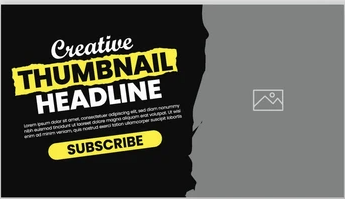
Designing a thumbnail from scratch at the correct dimensions can feel intimidating, especially for creators without a design background. This is where a tool like Piktochart AI becomes genuinely useful. Piktochart offers ready made templates preset to the correct YouTube Thumbnail Size, meaning you never have to manually calculate pixels or worry about aspect ratio mistakes.
Here is a simple workflow using Piktochart AI:
- Open Piktochart and select a YouTube thumbnail template, which is already formatted to 1280 by 720 pixels in the correct 16:9 ratio.
- Use the AI generation feature to describe your video topic, and let the tool suggest layout ideas, background imagery and complementary color palettes.
- Upload your own photo or screenshot, such as a close up face or a product shot, and let Piktochart automatically resize and position it within the safe zone.
- Add bold, readable text using the built in font pairing suggestions, keeping your message short enough to read at a small size.
- Export the finished design directly in the correct dimensions and file format, ready for upload without any additional resizing.
Using a template based tool like this removes the guesswork around sizing entirely, letting you focus purely on the creative side of thumbnail design.
How to Upload a Custom Thumbnail to YouTube
Once your thumbnail is designed at the correct YouTube Thumbnail Size, uploading it is a quick process.
- Sign in to YouTube Studio and open the video you want to update.
- Under the Details tab, locate the Thumbnail section on the right side of the page.
- Click Upload Thumbnail and select your finished image file from your device.
- Confirm the preview looks correct across the desktop, mobile and TV previews YouTube Studio provides.
- Save your changes, and the new thumbnail will typically appear within a few minutes.
Note that custom thumbnail uploads require your channel to be verified with a phone number. If you do not see the upload option, visit YouTube's verification settings first to unlock the feature.
If you ever need to reference or download an existing thumbnail, for example to study a competitor's design choices or archive your own published work, a simple utility like the YouTube Thumbnail Downloader from Bilipedia lets you paste a video link and instantly pull the thumbnail image in its available resolutions. It is a handy companion tool alongside your design workflow, particularly when you want quick visual references before starting a new design.
YouTube thumbnail tips and best practices
Once the technical dimensions are handled, the real difference between an average thumbnail and a high performing one comes down to design choices. Consider the following practices:
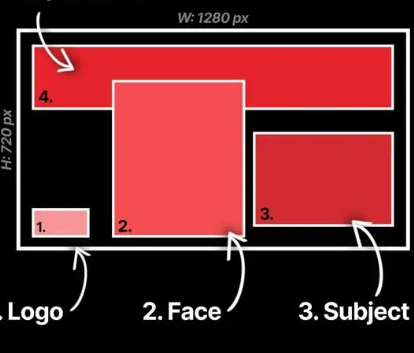
- Use a close up, expressive face whenever relevant, since viewers instinctively notice human expressions in a crowded feed.
- Limit your text to three to five words maximum, since anything longer becomes unreadable at small preview sizes.
- Choose high contrast colors that stand out clearly against YouTube's white and dark theme backgrounds.
- Keep your composition simple, with one clear focal point rather than several competing elements.
- Maintain visual consistency across your channel, using similar fonts, colors or layout structures so viewers instantly recognize your content in their feed.
- Test different versions of the same thumbnail using YouTube's built in A/B testing feature to see which version earns a stronger click through rate.
Beyond these core habits, remember that thumbnail performance is never fixed. Viewer preferences shift over time, trends move between niches, and what earned clicks a year ago may feel dated today. Revisit your top performing videos every few months and consider refreshing older thumbnails that use outdated fonts, low resolution images or layouts that no longer match your current channel branding. YouTube allows you to update a thumbnail at any point after publishing, so treating this as an ongoing optimization task rather than a one time task can meaningfully extend the lifespan of older videos in search and suggested feeds.
Follow YouTube's community guidelines
Every thumbnail you upload must also comply with YouTube's community guidelines, regardless of how well it is sized or designed. Thumbnails that violate these policies can lead to warnings, removed content or even monetization penalties.
Key guideline points to remember include:
- Never use sexually suggestive imagery, even if the surrounding content itself is appropriate.
- Avoid graphic violence, shocking imagery or content designed purely to disturb viewers.
- Do not mislead viewers with a thumbnail that has nothing to do with the actual video content, since this is considered clickbait and can hurt both viewer trust and channel performance.
- Refrain from using excessive or manipulated arrows, circles and reaction faces purely to manufacture false urgency.
- Respect copyright, meaning you should not use images, logos or screenshots you do not have permission to use commercially.
Staying compliant protects your channel long term and keeps your monetization eligibility intact.
Things to avoid in YouTube thumbnails
Alongside YouTube's official rules, there are practical design mistakes that quietly hurt performance even when they technically follow the guidelines.
- Avoid placing important text or faces in the bottom right corner, since YouTube overlays the video duration badge directly on top of that area.
- Do not rely on a low resolution screenshot pulled directly from your video footage, since compression usually leaves it soft and unclear.
- Avoid cluttered layouts with too much text, too many colors or overlapping graphics competing for attention.
- Steer clear of thumbnails that look nearly identical to a competitor's viral video, since this can confuse viewers and dilute your own brand identity.
- Never exaggerate or misrepresent what happens in the video, since this damages long term audience retention even if it briefly boosts clicks.
High CTR thumbnail examples
While every niche differs slightly, several patterns consistently appear across high performing thumbnails:
- The reaction face format: A creator's exaggerated but genuine expression paired with three bold words, commonly used in vlogs, reviews and reaction style content.
- The before and after split: Two contrasting images divided down the middle, popular in fitness, renovation and transformation content.
- The bold number format: A large, eye catching number such as a countdown or ranking, often used in listicle style videos.
- The clean product shot format: Natural for tutorial and educational content, this format uses a clean product or screen shot paired with a short benefit driven headline.
- The curiosity gap format: An intentionally incomplete visual or partially obscured element that makes viewers want to click to see the full picture.
Studying thumbnails within your specific niche, rather than copying generic formulas, usually produces the strongest long term results since audience expectations vary widely between topics like gaming, education, finance and lifestyle content.
Studying thumbnails within your specific niche also means paying attention to seasonal and regional trends. A thumbnail style that performs well for a gaming channel targeting a younger global audience may feel completely out of place for a finance or education channel targeting a more mature, professional audience. Spend time browsing the top performing videos in your own category, note recurring color choices, facial expressions and text placement, then adapt those patterns into a style that still feels authentic to your own brand rather than copying any single creator directly.
FAQs
What is a good YouTube thumbnail size? A good YouTube Thumbnail Size is 1280 by 720 pixels using a 16:9 aspect ratio, with a minimum accepted width of 640 pixels and a file size under 2MB in JPG or PNG format.
How can I test if my thumbnail stands out? Shrink your thumbnail down to the smallest display size, roughly 168 by 94 pixels, and check whether the text is still readable and the main subject is still clearly recognizable at that scale.
Can I compare multiple thumbnail options? Yes, YouTube Studio includes a built in A/B testing feature that lets you upload several thumbnail versions for the same video and automatically measures which one earns a higher click through rate.
Does this work for mobile YouTube viewers? Yes, the standard 1280 by 720 pixel thumbnail automatically scales correctly for mobile screens, though it is always worth previewing your design on an actual phone to confirm text remains legible.
What should I improve first for higher CTR? Start with contrast and readability. Make sure your main subject or text is instantly clear even at a small size, since this is usually the single biggest factor separating high performing thumbnails from ones that get scrolled past.
What's the best font size for thumbnails? There is no single fixed number since it depends on your canvas, but as a general rule your text should remain clearly readable when the thumbnail is scaled down to roughly 400 pixels wide, which usually means large, bold lettering with strong contrast against the background.
Is YouTube thumbnail 1280x720 or 1920x1080? YouTube officially recommends 1280 by 720 pixels as the standard size, though 1920 by 1080 pixels is also accepted since it maintains the same 16:9 ratio and simply offers a higher resolution starting point.
Is YouTube thumbnail size 16:9? Yes, 16:9 is the required aspect ratio for standard YouTube thumbnails, matching the shape of the video player itself across desktop, mobile and TV.
What happens if my thumbnail is the wrong size? If your image falls below the 640 pixel minimum width, YouTube may reject the upload entirely. If it uses an incorrect aspect ratio, YouTube will typically crop or letterbox the image, which can cut off important text or faces.
Why does my thumbnail look worse after uploading? This usually happens when the original file was too small or heavily compressed before upload. Always start with the full 1280 by 720 pixel canvas and export at high quality to avoid this kind of visible quality loss.
Final Thoughts
Mastering the correct YouTube Thumbnail Size is a small technical detail with an outsized impact on how your videos perform. Once you have the dimensions locked in at 1280 by 720 pixels with a 16:9 ratio, the real opportunity lies in the creative choices you make within that frame, from expressive faces to bold, readable text and consistent branding. Use the tools and best practices covered in this guide, test different approaches within your own niche, and refine your designs over time based on real click through data from your channel.